📥 Step 1: Download the Software #
- Visit our website: https://geocentric-env.com
- Log into your account using your registered email and password.
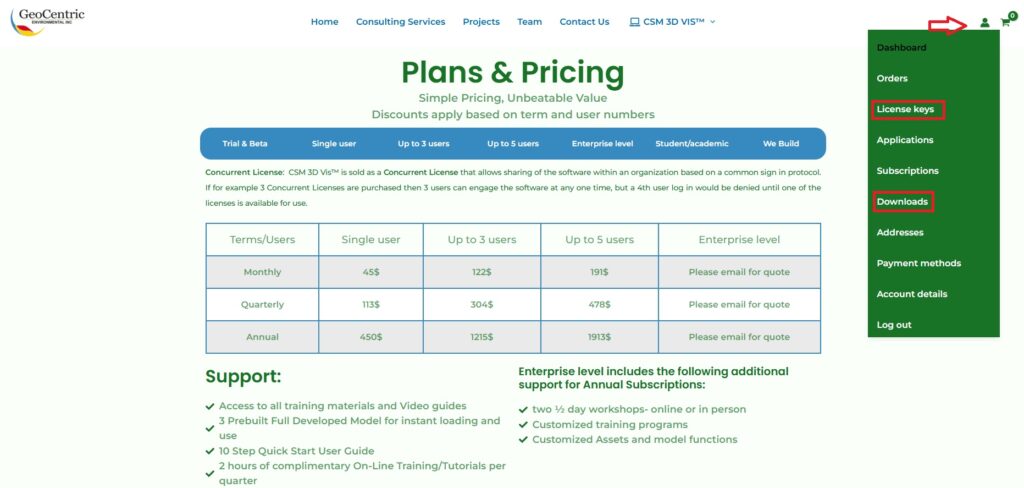
- Navigate to My Account → Downloads.
- Download the latest version of CSM 3D VIS™ for Windows.
📧 You can also find the download link in the purchase confirmation email sent to you immediately after your order.
💻 Step 2: Install CSM 3D VIS™ #
- Locate the downloaded `.exe` installer file on your computer.
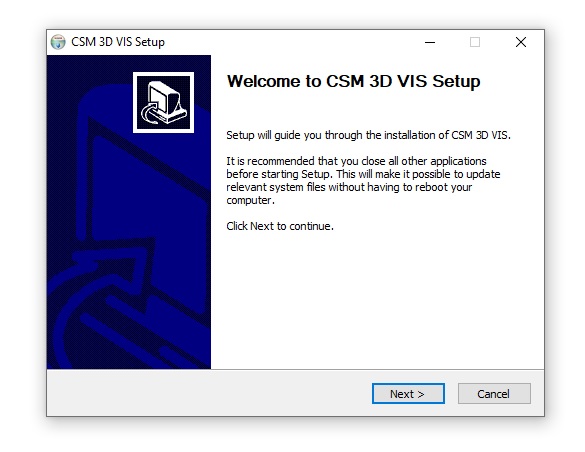
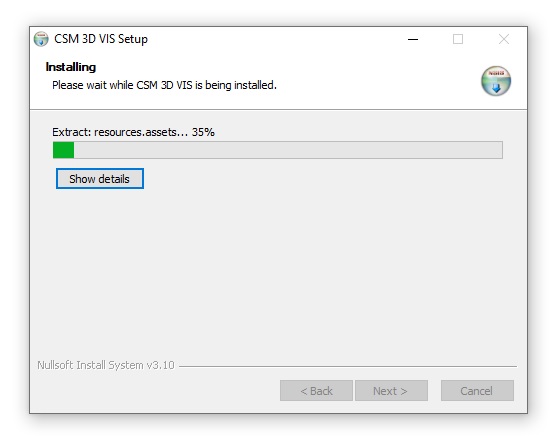
- Double-click the file to launch the installation process.
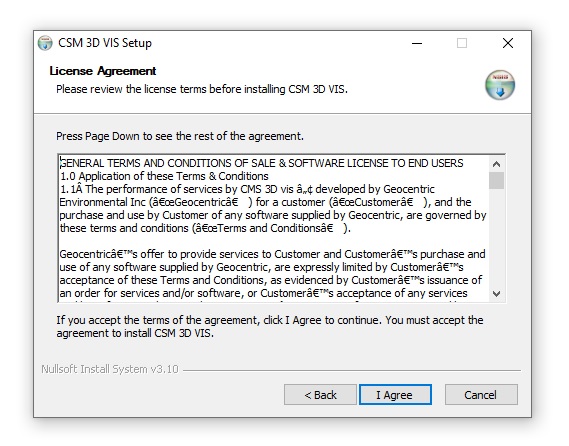
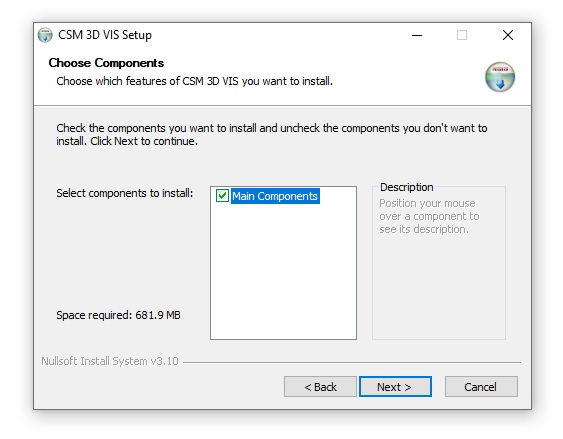
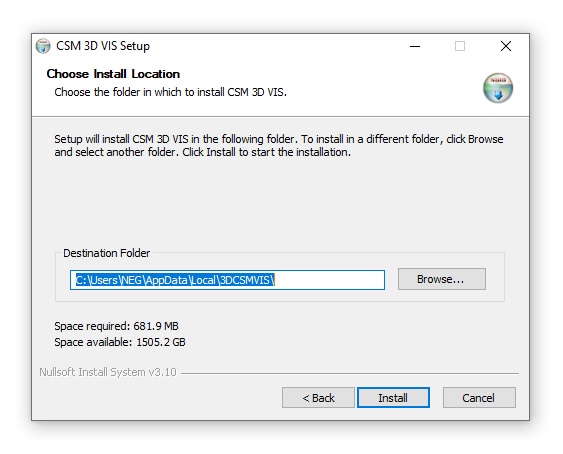
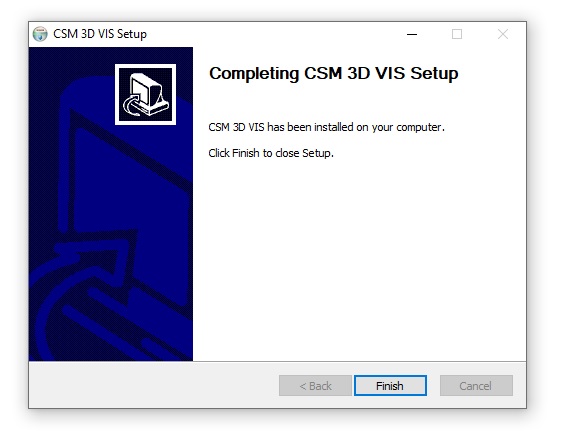
- Follow the installation wizard’s instructions to complete the setup.
- Once installed, you can open CSM 3D VIS™ from the desktop shortcut or start menu.
🔐 Step 3: Activate Your License #
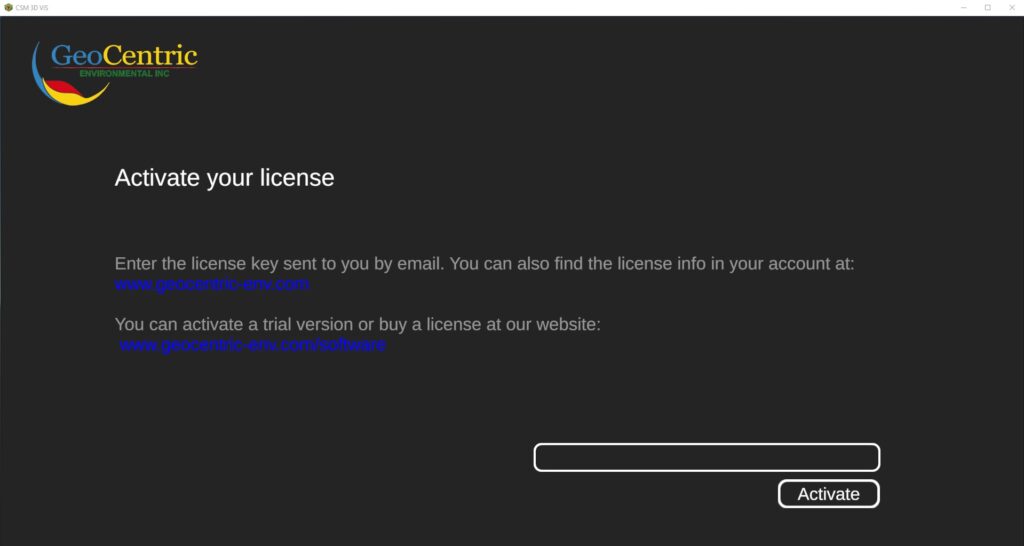
- When you launch the software for the first time, the License Activation window will appear.
- Enter your License Key exactly as provided.
– Your license key is included in your confirmation email.
– You can also find it in your account dashboard under My Account → License Keys. - Click the “Activate” button.
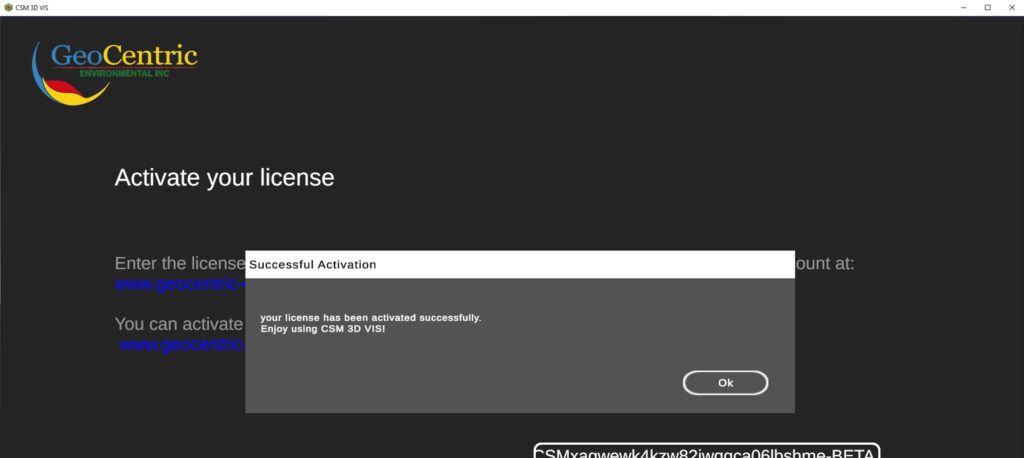
- If the key is valid and your device is connected to the internet, activation will be completed successfully.
🧩 Troubleshooting #
- License Key Not Working?
– Make sure there are no extra spaces when pasting the key.
– Confirm you have a stable internet connection. - Didn’t Receive Your License Key Email?
– Check your Spam or Junk folder.
– Or log in to your account and go to My Account → License Keys to retrieve your license key. - Still Need Help?
Contact our support team at: info@geocentric-env.com
✅ Important Notes #
- You can access your license and re-download the software at any time by logging into your account.
- Please keep your license key safe. It is unique and tied to your purchased plan.
🔄 License Management (in About Section) #
After successfully activating your license, you can manage it directly from within the software:
- Open the CSM 3D VIS™ application.
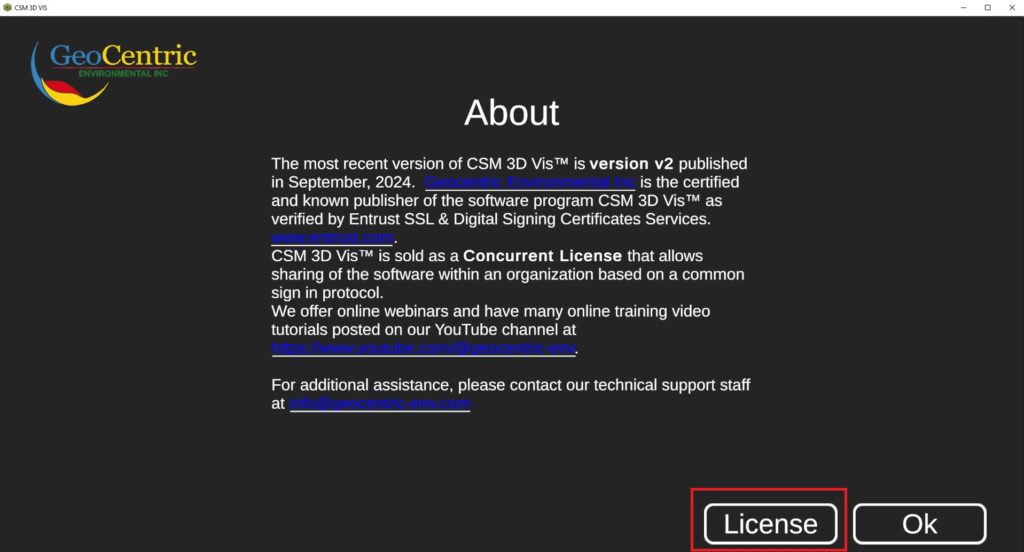
- Navigate to the About section.
- Click on the License Management option.
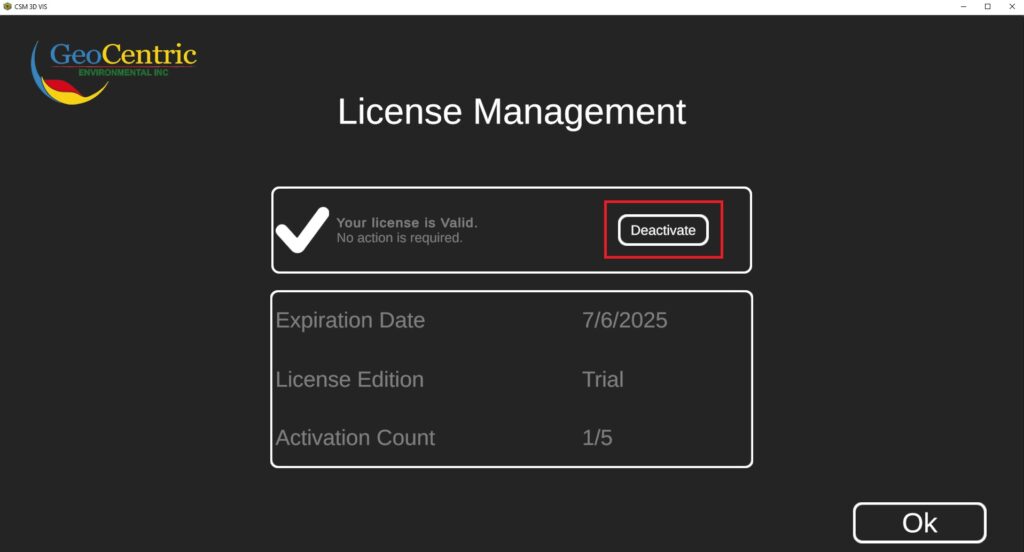
- You will have the option to:
– Deactivate License – useful when transferring the license to another computer.
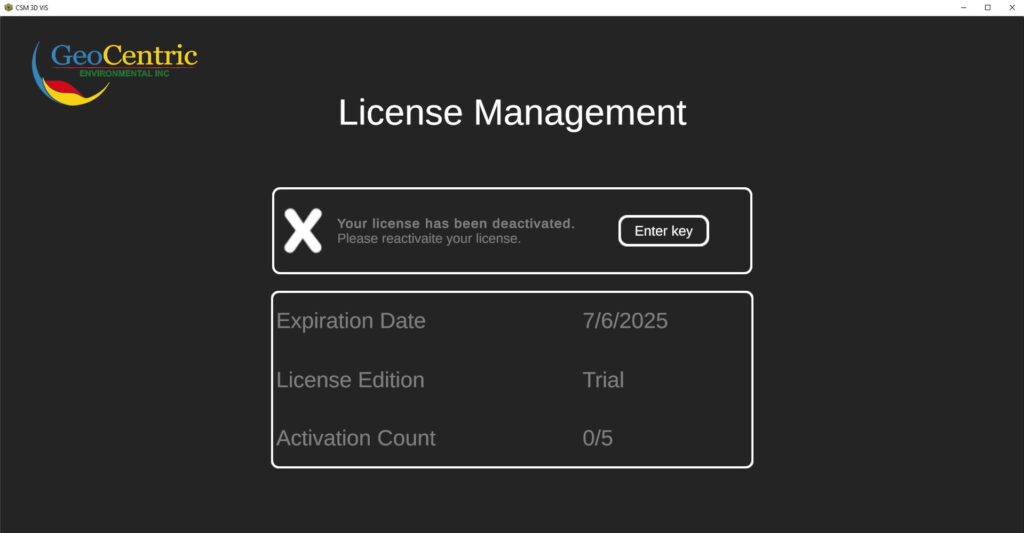
– Reactivate License – in case reactivation is needed on the same or a new system.
⚠️ An active internet connection is required for license deactivation or reactivation.